The 10 Most Googled Excel Questions in 2026 (Answered With Examples)
Step-by-step answers to the most searched Excel questions in 2026. XLOOKUP, dynamic arrays, pivot tables, Copilot AI, and every formula people keep Googling.

Every office has that one person everyone texts when they get stuck in Excel. Maybe that person is you. Maybe you are the one doing the texting. Either way, these are the questions the entire internet keeps asking -- and the answers that actually make sense.
I pulled the most searched Excel queries from 2026, cross-referenced forums, Reddit threads, and interview question databases, and wrote the guide I wish existed when I was staring at a broken VLOOKUP at 11pm on a Sunday.
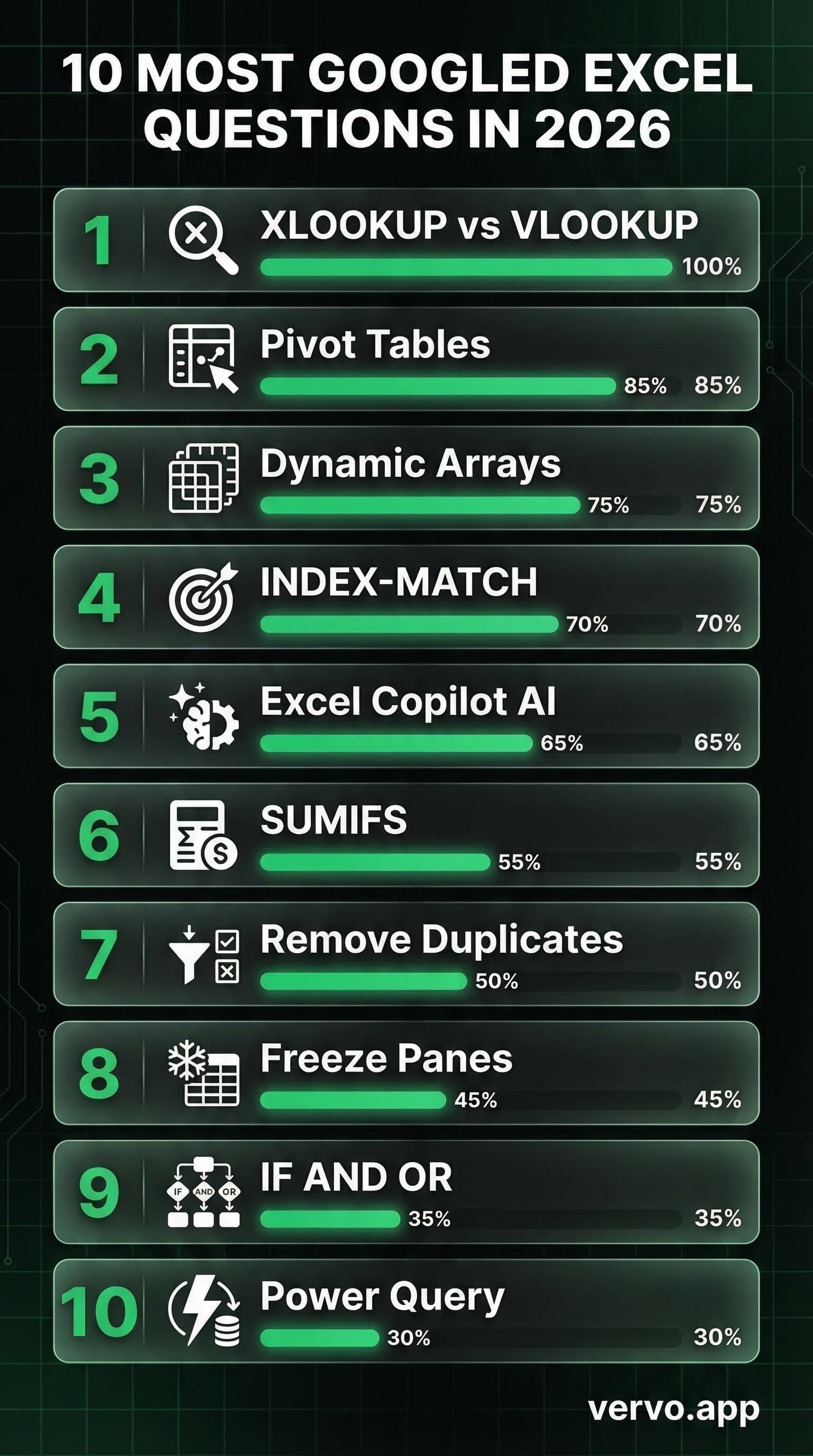
1. How do I use XLOOKUP (and should I stop using VLOOKUP)?
This is the single most asked Excel question in 2026. Microsoft themselves now recommend XLOOKUP over VLOOKUP for every new spreadsheet.
Here is what VLOOKUP looks like:
=VLOOKUP(A2, Products!A:C, 3, FALSE)
And here is the same thing in XLOOKUP:
=XLOOKUP(A2, Products!A:A, Products!C:C, "Not found")
Why XLOOKUP wins
| Feature | VLOOKUP | XLOOKUP |
|---|---|---|
| Search direction | Right only | Any direction |
| Default match | Approximate | Exact |
| Error handling | Needs IFERROR wrapper | Built in |
| Return multiple columns | No | Yes |
| Column insertions break it | Yes | No |
The built-in error handling alone saves you from wrapping every lookup in IFERROR. If the value is missing, XLOOKUP returns whatever fallback you specify -- "Not found", 0, blank, anything.
When to still use VLOOKUP: Legacy spreadsheets shared with people on older Excel versions that do not support XLOOKUP (pre-2021). That is literally the only reason.
2. How do I create a pivot table from scratch?
Pivot tables are the second most intimidating and most useful feature in Excel. People Google this constantly because every tutorial assumes you already know what "rows" and "values" mean in context.
Here is the actual process:
- Select your data range (make sure it has headers)
- Go to Insert > PivotTable
- Choose where to place it (new sheet is easiest)
- Drag fields into four zones: Filters, Columns, Rows, Values
Real example
Say you have sales data with columns: Date, Product, Region, Revenue.
- Drag Product to Rows
- Drag Revenue to Values (it auto-sums)
- Drag Region to Columns
You now have a cross-tab showing revenue by product and region. Took 10 seconds.
Pro tip: Right-click any value in the pivot table and select "Show Values As > % of Grand Total" to instantly see percentage breakdowns without writing a single formula.
3. What are dynamic arrays and why does everyone keep talking about them?
Dynamic arrays changed Excel forever and most people still do not know they exist. Before dynamic arrays, a formula returned one value to one cell. Now a single formula can fill an entire range automatically.
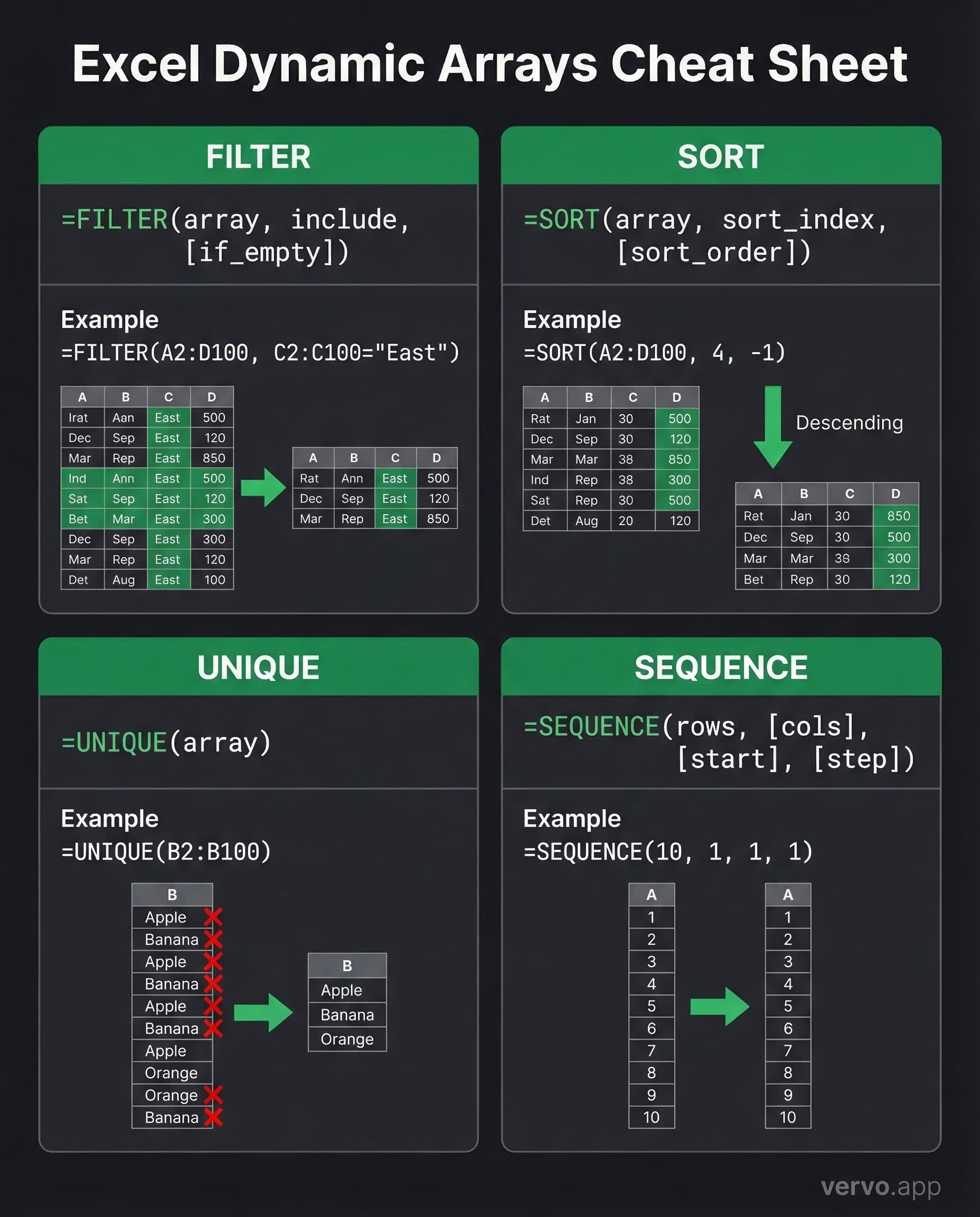
The big four dynamic array formulas
FILTER -- Extract rows that match a condition:
=FILTER(A2:D100, C2:C100="East", "No results")
Returns every row where Region equals "East". No helper columns needed.
SORT -- Sort any range by any column:
=SORT(A2:D100, 4, -1)
Sorts by the 4th column (Revenue) in descending order.
UNIQUE -- Get distinct values:
=UNIQUE(B2:B100)
Returns every unique product name. One formula. Done.
SEQUENCE -- Generate number series:
=SEQUENCE(10, 1, 1, 1)
Creates numbers 1 through 10 in a column. Useful for row numbering, date ranges, and invoice numbers.
The results "spill" into adjacent cells automatically. You will see a blue border around the spill range. If something is blocking the spill, you get a #SPILL! error -- just clear the cells below.
4. How do I use INDEX-MATCH instead of VLOOKUP?
INDEX-MATCH is the formula combination that separates casual Excel users from power users. It does everything VLOOKUP does but without the limitations.
=INDEX(C2:C100, MATCH(F2, A2:A100, 0))
Translation: "Find the value in column C that sits in the same row where column A matches what is in F2."
Why people swear by it
- Looks left: VLOOKUP can only return values to the right of the lookup column. INDEX-MATCH works in any direction.
- Faster on large datasets: MATCH only searches one column instead of the entire table array.
- Does not break when you insert columns: VLOOKUP's column index number shifts when you add columns. INDEX-MATCH uses actual ranges.
Two-way lookup (the power move)
=INDEX(B2:F100, MATCH("Widget", A2:A100, 0), MATCH("Q2", B1:F1, 0))
This finds the intersection of a specific row and column -- like looking up a value in a matrix. VLOOKUP cannot do this at all.
5. How does Excel Copilot AI actually work?
This jumped from zero to top-five most searched Excel query in 2026. People want to know what Copilot can actually do versus what Microsoft's marketing claims.
What Copilot can do right now
- Write formulas from plain English: Type "calculate the running total of column D" and it generates the formula
- Build pivot tables: "Summarize revenue by region and quarter" creates the entire pivot
- Clean messy data: "Remove duplicates and fix inconsistent capitalization in column B"
- Analyze trends: "What are the top 5 products by growth rate?" generates an answer with charts
- Agent Mode: Copilot can now directly edit your spreadsheet -- not just suggest, but actually make changes
What it costs
You need Microsoft 365 ($10/month for Personal) to access Copilot in Excel. Business plans require a separate Copilot license. There is a free one-month trial.
The honest take
Copilot is genuinely useful for formula generation and data cleanup. It struggles with complex multi-step analysis and sometimes writes formulas that are technically correct but wildly inefficient. Think of it as a very fast intern who needs supervision.
6. How do I use SUMIFS to add values with multiple conditions?
SUMIFS is the formula people search for when a basic SUM is not enough. It adds up values only when multiple conditions are met.
=SUMIFS(D2:D100, B2:B100, "Widget", C2:C100, "East")
Translation: "Sum all values in column D where column B says Widget AND column C says East."
Common patterns
Sum sales above a threshold:
=SUMIFS(D2:D100, D2:D100, ">1000")
Sum for a specific date range:
=SUMIFS(D2:D100, A2:A100, ">="&DATE(2026,1,1), A2:A100, "<="&DATE(2026,3,31))
Sum with wildcards:
=SUMIFS(D2:D100, B2:B100, "Widget*")
The asterisk matches any characters after "Widget" -- catches Widget Pro, Widget Mini, Widget XL.
COUNTIFS works the same way but counts instead of summing. AVERAGEIFS averages. Same syntax, different output.
7. How do I remove duplicates in Excel?
This gets searched millions of times because there are three completely different ways to do it and people do not know which one to use.
Method 1: The button (fastest)
Select your data > Data tab > Remove Duplicates > Check which columns to compare > OK.
Done. But it permanently deletes the duplicate rows. No undo after you save.
Method 2: UNIQUE formula (non-destructive)
=UNIQUE(A2:A100)
Spills a list of unique values into a new range. Your original data stays intact. This is the 2026 way.
Method 3: Conditional formatting (just highlight them)
Home > Conditional Formatting > Highlight Cells Rules > Duplicate Values
This does not remove anything. It just turns duplicate cells red so you can review them before deciding what to delete. Best approach when you are not sure if the "duplicates" are actually duplicates or just similar entries.
8. How do I freeze rows and columns so they stay visible when I scroll?
Sounds simple. Gets Googled an embarrassing number of times because the menu option is not where anyone expects it to be.
Freeze the top row: View > Freeze Panes > Freeze Top Row
Freeze the first column: View > Freeze Panes > Freeze First Column
Freeze both (or custom): Click the cell below and to the right of where you want the freeze. Then View > Freeze Panes > Freeze Panes.
Example: Click cell B3. Everything above row 3 and to the left of column B stays locked while you scroll. This is how you keep headers AND a label column visible on a 10,000-row spreadsheet.
To unfreeze: View > Freeze Panes > Unfreeze Panes. Same menu, toggle behavior.
9. How do I use IF with AND/OR for multiple conditions?
The IF function alone handles one condition. Real spreadsheets need multiple conditions checked simultaneously. This is where AND and OR step in.
IF with AND (all conditions must be true)
=IF(AND(B2>100, C2="East"), "Bonus", "Standard")
Returns "Bonus" only when both the amount is over 100 AND the region is East.
IF with OR (any condition can be true)
=IF(OR(B2>100, C2="VIP"), "Priority", "Normal")
Returns "Priority" if the amount is over 100 OR the customer is VIP. Either condition triggers it.
Nested IF (the old way -- avoid if possible)
=IF(B2>100, "High", IF(B2>50, "Medium", "Low"))
IFS (the 2026 way)
=IFS(B2>100, "High", B2>50, "Medium", B2>0, "Low", TRUE, "None")
IFS evaluates conditions in order and returns the first match. No nesting. Readable. Use this instead of nested IF whenever possible.
10. How do I use Power Query to clean messy data?
Power Query went from obscure to essential in 2026. It is a built-in data transformation tool that handles the dirty work -- merging files, fixing formats, splitting columns -- without writing a single formula.
How to open it
Data tab > Get Data > From Table/Range (for data already in your sheet)
Or Data tab > Get Data > From File/Database/Web (for external sources)
What people use it for
- Combining multiple CSV files into one table automatically
- Unpivoting columns (turning wide data into tall data for pivot tables)
- Splitting "John Smith" into separate First Name and Last Name columns
- Changing data types (that column of "numbers" that is actually text)
- Removing blank rows and errors in bulk
The key insight: Power Query records every step you take as a transformation recipe. When your source data updates, you just click Refresh and every step replays automatically. No manual cleanup ever again.

The pattern behind all of this
Here is what is interesting about these 10 questions. They all follow the same pattern: someone has data, they need it to do something, and they are stuck translating what they want into Excel's language.
That translation gap is exactly what AI is closing across every tool in 2026. Excel Copilot lets you describe what you want in English and generates the formula. AI agents for texting do the same thing for conversations -- you know what you want to say, you just need help finding the right words.
The same feeling of staring at a blank formula bar wondering "how do I write this?" is the same feeling of staring at a text message wondering "how do I respond to this?" Both are translation problems. Both now have AI solutions.
If you have ever wished someone would just write the XLOOKUP for you, you understand why people use vervo.app to help them write texts. Screenshot the conversation, get three reply options, pick the one that fits. Same principle as Copilot -- describe the situation, get a solution, make it yours.